
Free POS Equipment: Start With What You Already Have
Start on the device and card terminal you already own. Buy a printer, drawer or scanner only after a test sale shows you need one.
Written with AI help and fact-checked. Figures as of November 2026; prices and rules change, so check before you decide.
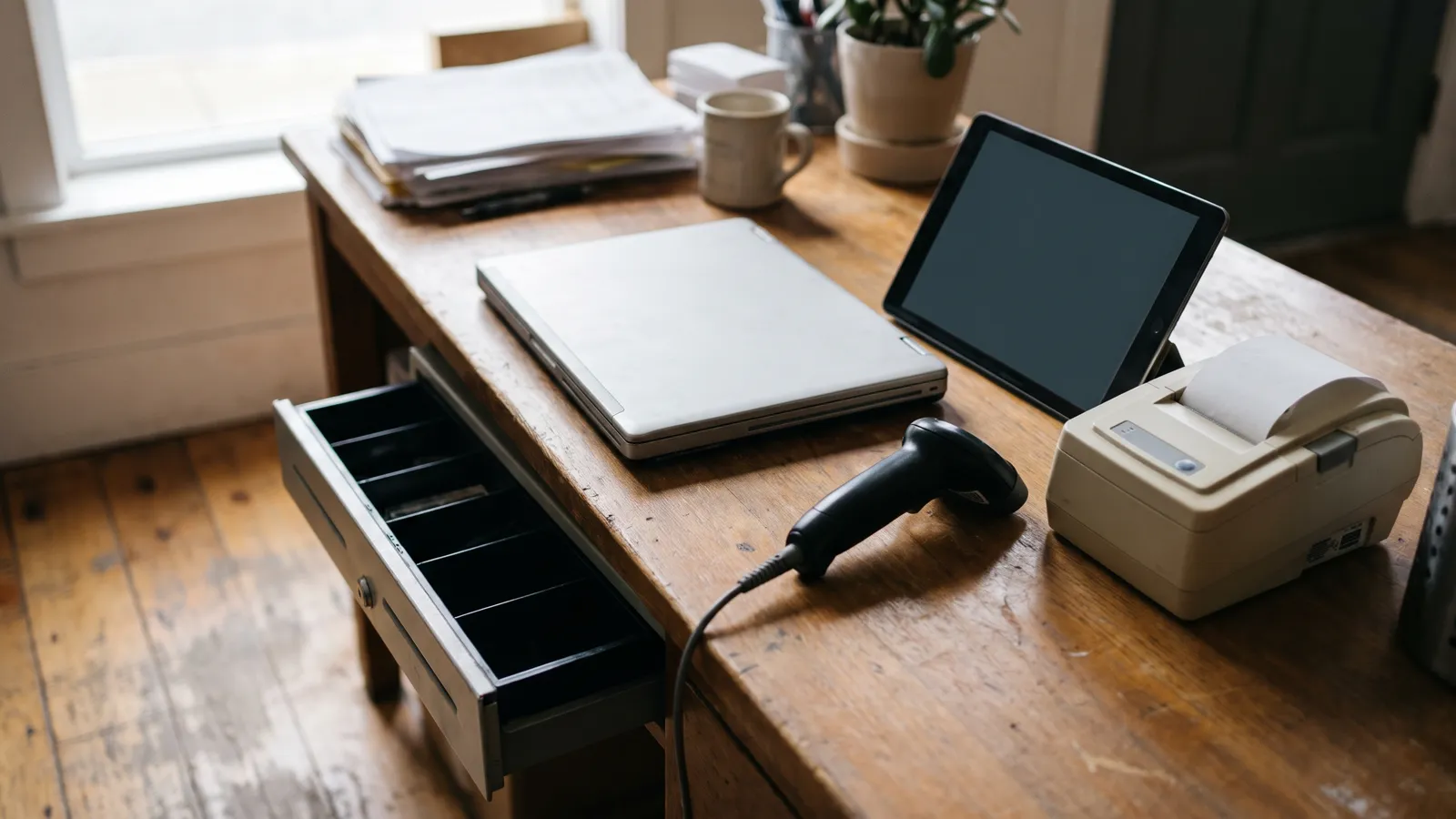
You don't need to buy equipment to start on a free POS. FreePOS USA runs in the browser on the computer, tablet or phone you already have, and cards go through the card terminal you already use. A receipt printer, cash drawer and barcode scanner are optional. Buy them only after a test sale shows you need them.
The common mistake is buying a full bundle on the day you decide to open, then finding out the old tablet was enough, or that your customers never wanted a paper receipt. A produce stand doesn't need what a clothing store on Main Street needs.
What you need on day one
- A computer, tablet or phone with a current browser.
- Your card terminal, if you take cards. The free plan doesn't process payments, so you keep the terminal and provider you have.
- A cash box, if you take cash.
- Price tags or a price list.
That's it. Open the POS on the device that's already in your bag or drawer and ring up a practice sale. Write down what slowed you down. Only then decide what to buy. If everything worked, you just saved money.
Which device to use
- Computer: the biggest screen, and the easiest way to connect a USB receipt printer.
- Tablet: comfortable at a counter, easy to turn toward a customer.
- Phone: fine for a stall, a pop-up or deliveries. Check that the battery lasts a full selling day.
One thing to know if you plan to print from an iPad: browsers on iPad and iPhone can't drive a USB printer, because Safari doesn't support WebUSB. On an iPad, plan for a receipt printer that sits on your network (Wi-Fi or a network cable) instead.
Barcode scanner: when it's worth it
A scanner pays off when you sell many small items that already carry barcodes. With twenty products, tapping them on screen is just as fast.
The POS works with scanners that act like a keyboard: they type the barcode and press Enter. Many USB scanners work this way out of the box, and many Bluetooth scanners have a keyboard mode. It works on any device that accepts a keyboard, including an iPad.
Already have a scanner? Test it in two minutes: open a blank text document and scan any barcode. If the numbers appear on screen, it types like a keyboard, and that's what the POS needs.
Receipt printer: optional
Without a receipt printer set up, the POS sends receipts through your device's normal print dialog, so an office printer works in a pinch. Many customers paying by card also get a slip from the card terminal.
A thermal receipt printer makes sense when most customers want paper, or when you have a line. The printer settings in the register list these options:
- Star printers that use WebPRNT, on your network.
- Epson printers that use ePOS-Print, on your network.
- USB thermal printers that use ESC/POS, from Chrome or Edge on a Windows computer.
Network printers are the option that also works from an iPad. Before you pay for a model, check it with VoVi support through the help center, and run a test print the day it arrives, while you can still return it.
Cash drawer: only with a printer
In this POS, the cash drawer connects to the receipt printer, not the computer. The printer sends the signal that pops it open, and you can set the drawer to open whenever a receipt prints. No printer, no automatic drawer. So buy the printer first, and the drawer only if you need it.
You can track cash without one. The free plan's Drawer screen lets you open a shift with your starting cash, record cash in and out during the day, and count at close. Any difference is recorded. A plain cash box works fine with that.
Card payments without an integrated terminal
This is the part to understand before day one. The free plan doesn't process card payments. When a customer pays by card, you do two things: run the card on your terminal, then record the sale in the POS as a card payment. Do both steps back to back, before the next customer steps up.
At the end of the day, compare the card total on your terminal with the card total in the POS. A small gap usually means one sale was entered twice or not at all. It's easy to find that night and hard to find at the end of the month. Your deposit records for cash and card sales are part of the records the IRS expects you to keep.
Your card terminal and its fees stay between you and your payment provider. The PCI Security Standards Council suggests checking card readers for attached skimming devices, and sending compliance questions to your merchant bank. To see a card sale step by step, read your first sale on a free POS.
When the internet drops
Mall Wi-Fi and market cell signal aren't always reliable. The free plan includes offline mode, so you keep selling when the connection drops. Try it before opening day on the exact device you'll use: turn off Wi-Fi and cellular data, ring up a sale, then reconnect. Finding out in the middle of a rush is too late.
Equipment check before opening day
This takes about half an hour, a day or two before you open:
- One practice sale on every device you'll use.
- One printed receipt, if you have a printer.
- Open the drawer from the POS, if you have one.
- Scan three products with barcodes.
- One card sale, recorded in the POS and checked against the terminal.
- One sale with the internet off.
When it's time to upgrade, it's not the equipment
Equipment doesn't push you onto a paid plan. How you work does. The free plan is built for one location and one user, with 300 sales a month. Once a second person needs to ring up sales under their own login, that's a paid plan, not more hardware. The details are in running a free POS with employees.
VoVi Light is $25 and VoVi Pro is $39 per location per month before tax, with a 14-day free trial and no card needed. You upgrade in the same account, and your products and sales history stay.
In short
- Start on the device you already have. Buy equipment only after a practice sale.
- A scanner that types like a keyboard is all the POS needs.
- A receipt printer is optional. Check the model with support before you buy.
- The cash drawer runs off the printer. No printer, no automatic drawer.
- Cards go through your own terminal. Record them in the POS and match the totals every night.
- Test offline mode before opening day.
Want to try it on the device in front of you? Start the free plan. It's $0 a month, not a trial.
Frequently asked questions
Do I need a card terminal to start on the free plan?
Only if you take cards. The free plan doesn't process payments. You take the card on your own terminal and record the sale in the POS as a card payment. Fees and contracts stay with your payment provider.
Can I use my phone as a POS?
Yes. It runs in the browser on a computer, tablet or phone. Check that the screen is comfortable in front of customers and that the battery lasts a full day.
Do I need a receipt printer?
Not to start. Without one, receipts go through your device's normal print dialog. If you add a thermal printer, check the exact model with VoVi support before you buy and test it the day it arrives.
Will my barcode scanner work?
If it types like a keyboard, yes. Open a blank text document and scan a barcode. If the numbers appear, the POS can read it too.
What happens to my data if I upgrade?
You upgrade in the same account. Your products and sales history stay. VoVi Light is $25 and Pro is $39 per location per month before tax.